

Guest reviews play an important role in improving the guest experience and making every stay better. They help you understand what guests love about your property, identify areas that need improvement, and make informed decisions to deliver better service.
With WelcomeScreen, you can now collect and manage guest feedback directly through your TV app and Guidebook, customize review questions, and receive instant notifications through Slack and WhatsApp — all from one place.
This guide explains how to set up WelcomeScreen Reviews, configure notifications, and track guest feedback across your properties.
To get started, log in to your WelcomeScreen dashboard and navigate to the Reviews section. Under the Listings tab, you can view all your listings and enable the review toggle for the properties where you want to collect guest feedback.
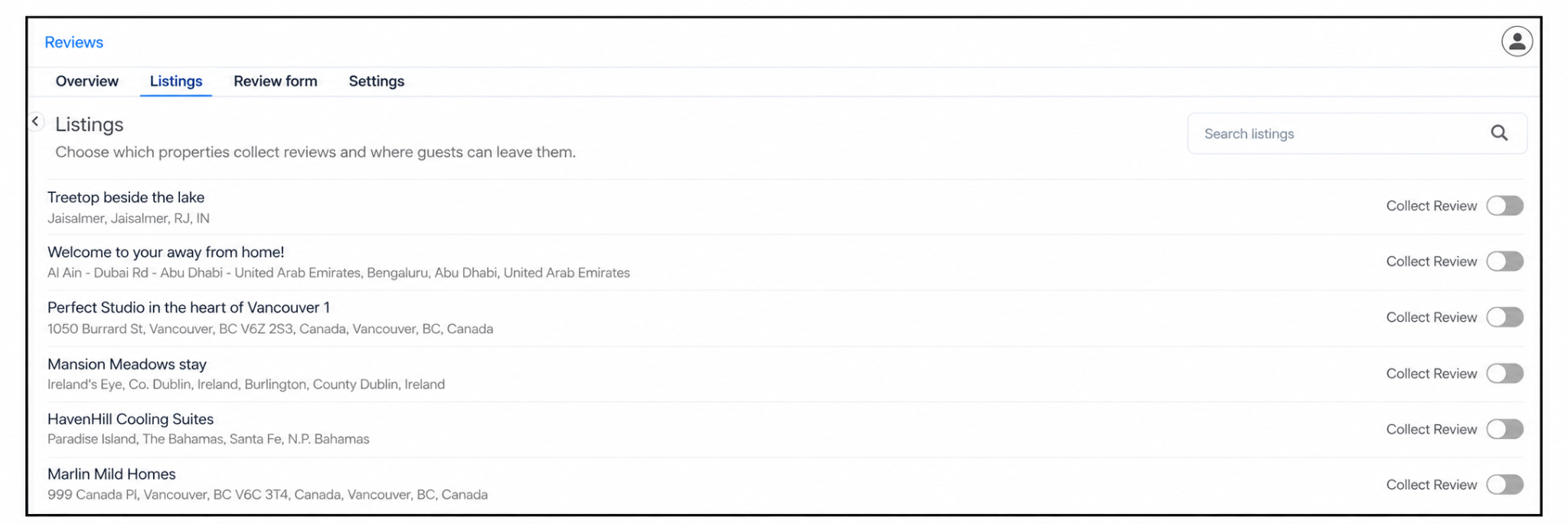
After enabling reviews for your chosen listings, you can customize your review questions to collect feedback on the aspects of the guest experience that matter most to you.
After enabling listings, open the Review form tab to choose what you want to ask your guests. You can use WelcomeScreen's default questions, create your own custom questions, or combine both. You can add up to 10 questions and enable or disable individual questions according to your needs.

You can add your customised URL under the Redirected Link section. Once the guest submits their review, they will be redirected to the link you’ve provided. This could be your listing, direct booking website, or any other relevant page.
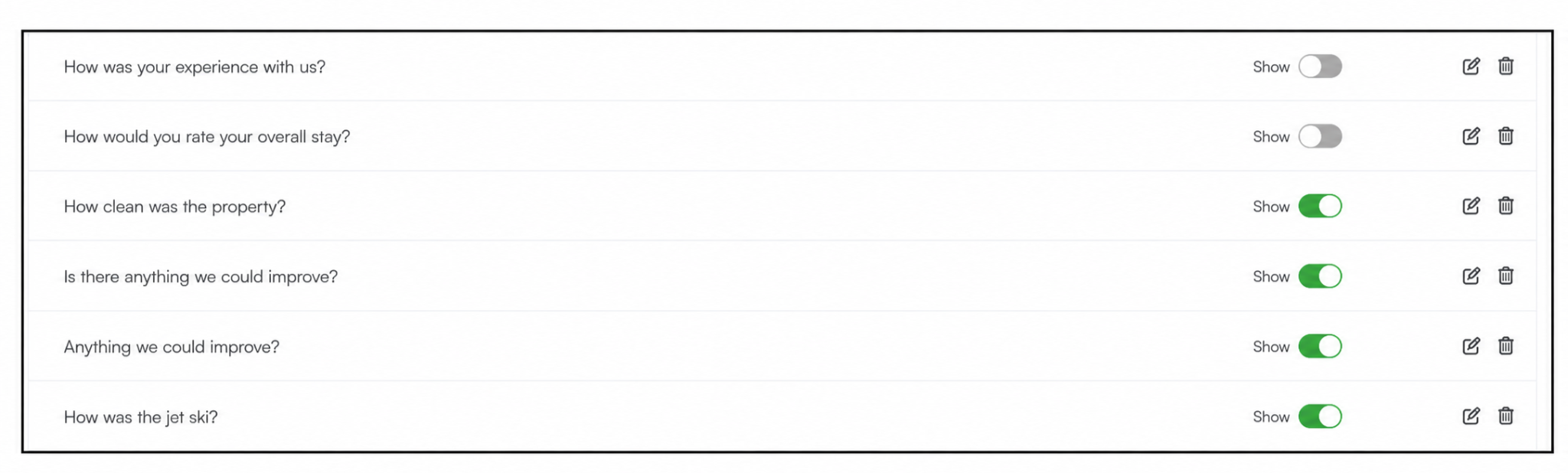
Choosing relevant questions helps you collect feedback that can guide improvements to your property and guest experience.
Stay on top of guest feedback with instant review notifications from WelcomeScreen. Go to Reviews → Settings → Get Notifications on, select Slack or WhatsApp, click Connect, and follow the setup instructions.
Whenever a guest submits a review rated below 5 stars, you’ll receive a notification through your connected channel. This helps you address concerns promptly and contact guests before checkout to improve their stay and overall satisfaction.
Once enabled, WelcomeScreen Reviews allows guests to submit feedback anytime during their stay through the WelcomeScreen TV app or digital Guidebook. Guests can submit reviews an unlimited number of times, helping hosts collect ongoing guest feedback and improve the guest experience.
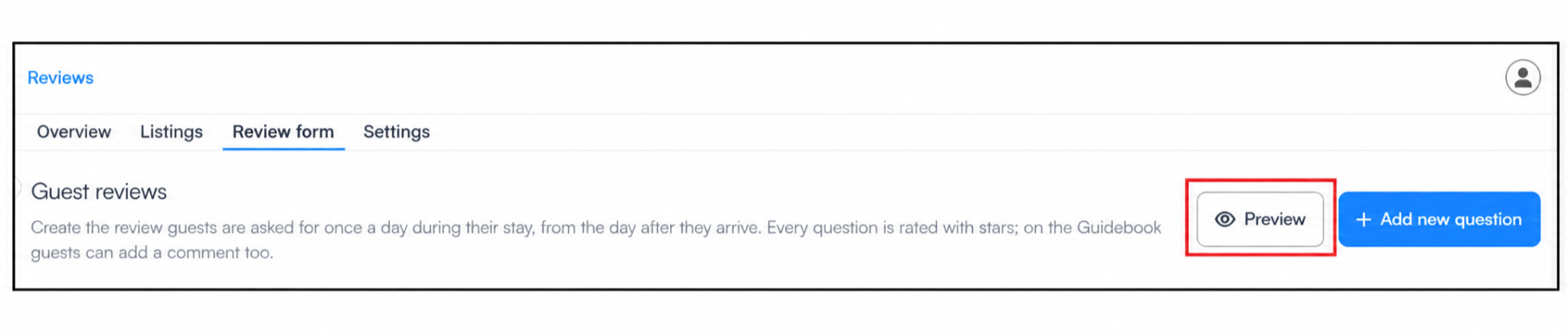
To see how your guest review form will appear on the TV and Guidebook, click Preview in the top-right corner of the review form. This lets you check how the review questions are displayed to guests before they submit their feedback.
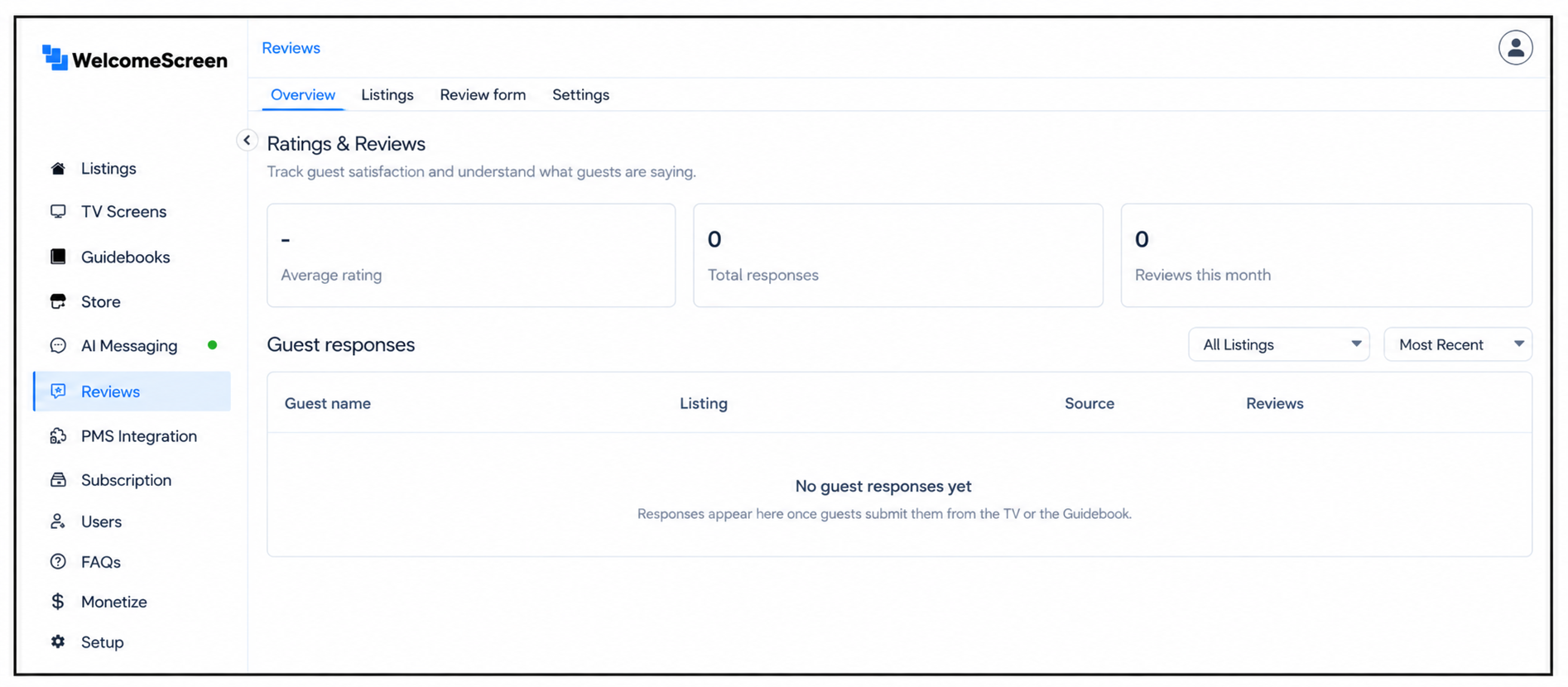
All submitted reviews are available in the Overview tab of the WelcomeScreen Reviews dashboard. You can view each guest’s name, listing, review source, and submitted feedback in one place. The dashboard also displays key metrics, including average guest ratings, total review responses, and reviews received during the current month.
To make guest review management easier, you can filter reviews by listing and sort them by the most recent or oldest submissions, helping you track guest feedback across your vacation rental properties.
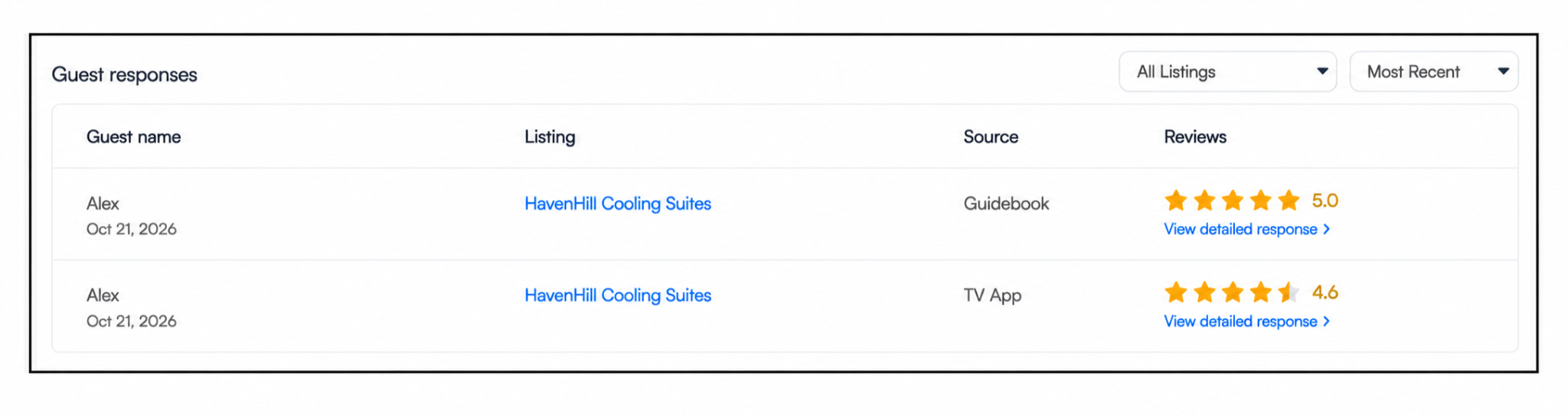
This centralized guest review management feature helps vacation rental hosts track guest feedback, monitor satisfaction, and identify opportunities to improve the guest experience across their properties.
For additional assistance or questions, contact the WelcomeScreen support team at: support@welcomescreen.com
Part of the same family as STR Market.


.png)