

Providing timely responses to guest inquiries is key to delivering a seamless guest experience. While WelcomeScreen AI Messaging automatically handles common questions, some requests such as late check-out, special accommodations, or property-specific inquiries still
require a host's attention.
By connecting Slack with WelcomeScreen AI Messaging, you'll receive instant notifications whenever AI detects a guest message that needs manual follow-up. This helps you stay informed and respond quickly without constantly monitoring the WelcomeScreen portal.
Setting up Slack notifications only takes a few minutes and ensures you're immediately alerted whenever guest intervention is required.
Log in to your WelcomeScreen Portal and navigate to the AI Messaging section.
Open the Settings tab and scroll to the Get Notifications On section. Under Slack, click Connect to begin the integration.
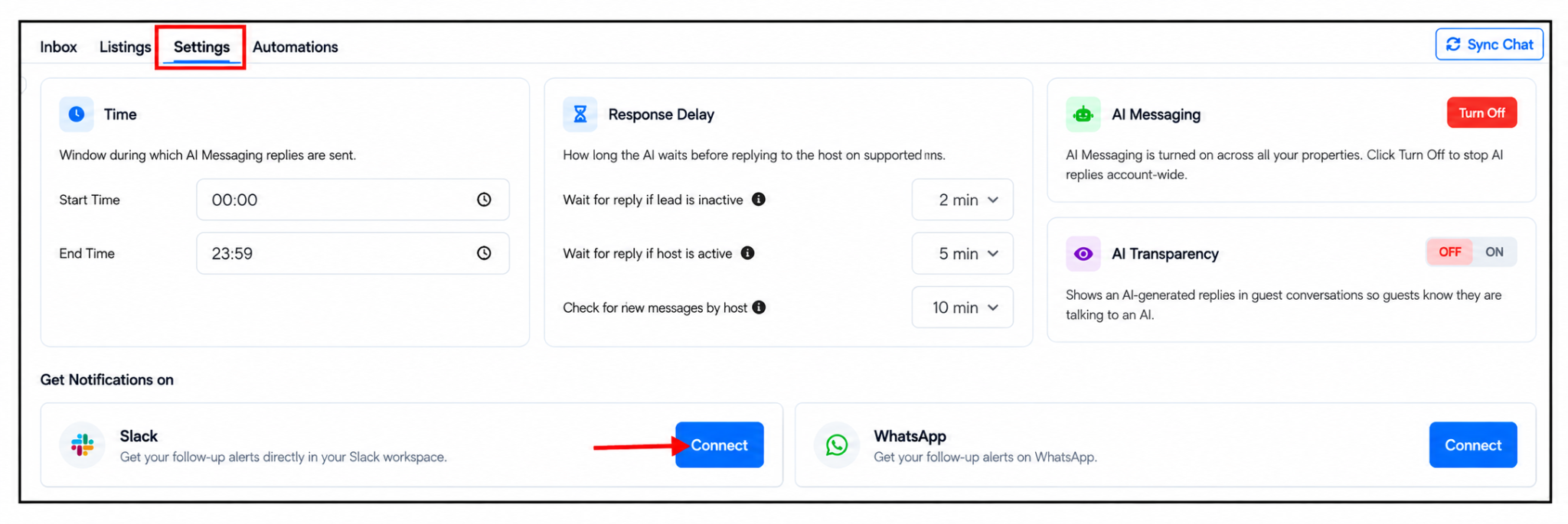
After clicking Connect, you'll be redirected to Slack's authorization page.
Select the Slack workspace where you'd like to receive guest notifications and choose the appropriate channel from the dropdown list. Review the requested permissions and click Allow to authorize the WelcomeScreen AI application.
Once the authorization is complete, your Slack workspace will be successfully connected.
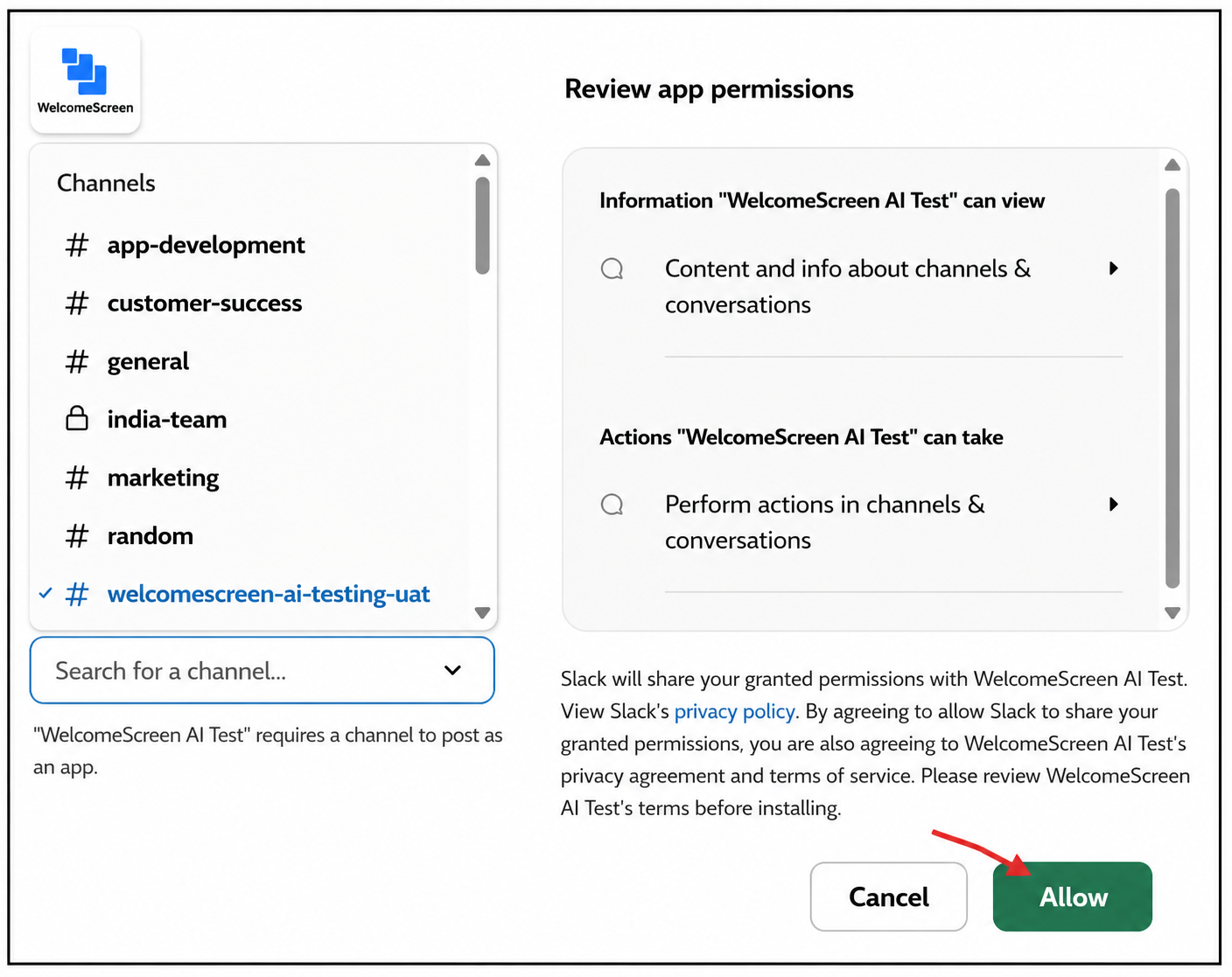
After the integration is active, WelcomeScreen AI Messaging will continue responding to routine guest questions automatically.
Whenever a guest submits a request that requires host attention, such as a special request or inquiry that AI cannot confidently answer, an instant notification will be sent directly to your selected Slack channel.
If you need to change the Slack workspace receiving notifications, you can easily disconnect the current integration and reconnect another workspace.
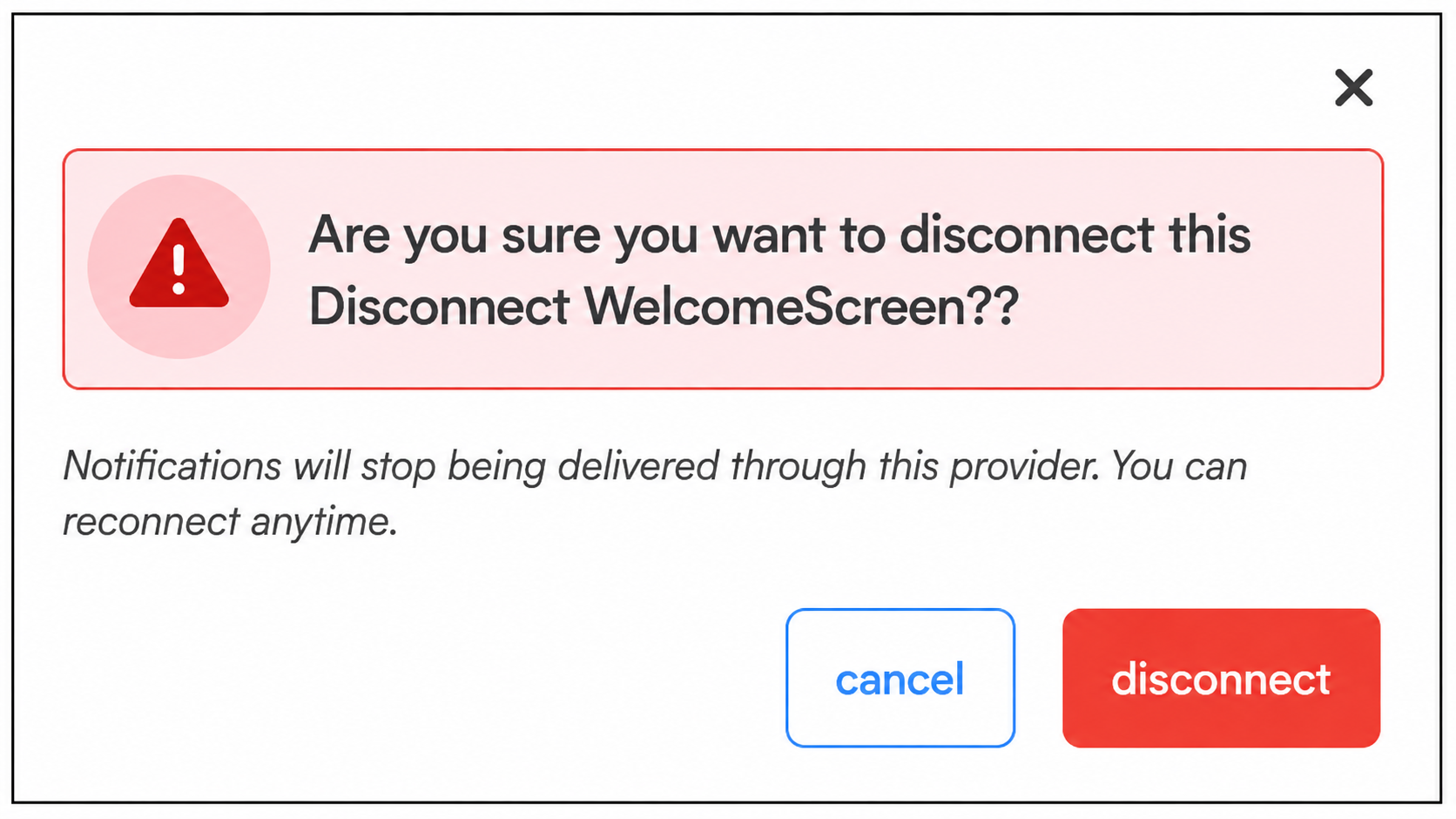
Navigate back to AI Messaging → Settings, locate your connected Slack integration, and click the Disconnect (X) icon.

A confirmation window will appear asking whether you want to disconnect the integration. Select Disconnect to remove the existing connection. Notifications will stop being delivered through the current Slack workspace until a new connection is established.
You can reconnect at any time by following the same authorization process and selecting your preferred Slack workspace.
WhatsApp Notifications
Receive real-time guest follow-up alerts directly on WhatsApp, making it easy to stay connected even while on the go.
Click here: WhatsApp Notification Setup Guide
With real-time notifications delivered directly to your workspace, you can respond faster, improve guest satisfaction, and streamline communication across your properties, all from one convenient workflow.
Enabling AI Messaging also unlocks AI Recommendations for each listing, automatically generating personalized local recommendations for your guests.
Click here: AI Recommendation for Listing
For additional assistance or questions, contact the WelcomeScreen support team at: support@welcomescreen.com


.png)