

Manage Orders and Notifications helps you stay on top of all guest purchases made through your store. From the WelcomeScreen portal, you can easily track incoming orders, review order details, update order status, and receive notifications so you never miss a new request or update.
Before you begin managing orders and notifications, make sure your store is fully set up:
Once these steps are completed, you can start managing orders and enabling notifications for your store.
Placing an Order:
Once the store setup is complete, you can share the guidebook link with guests before their check-in date.
Guests can browse available products and place orders based on product availability and delivery timing.
This allows you to offer additional services during the guest’s stay while improving the overall guest experience.
When a guest places an order through the WelcomeScreen Store, the order and payment details are automatically recorded in the Payments tab.
Here, you can view the products purchased, order date, total amount paid, and payment status, making it easy to track guest purchases and monitor transactions in one place.

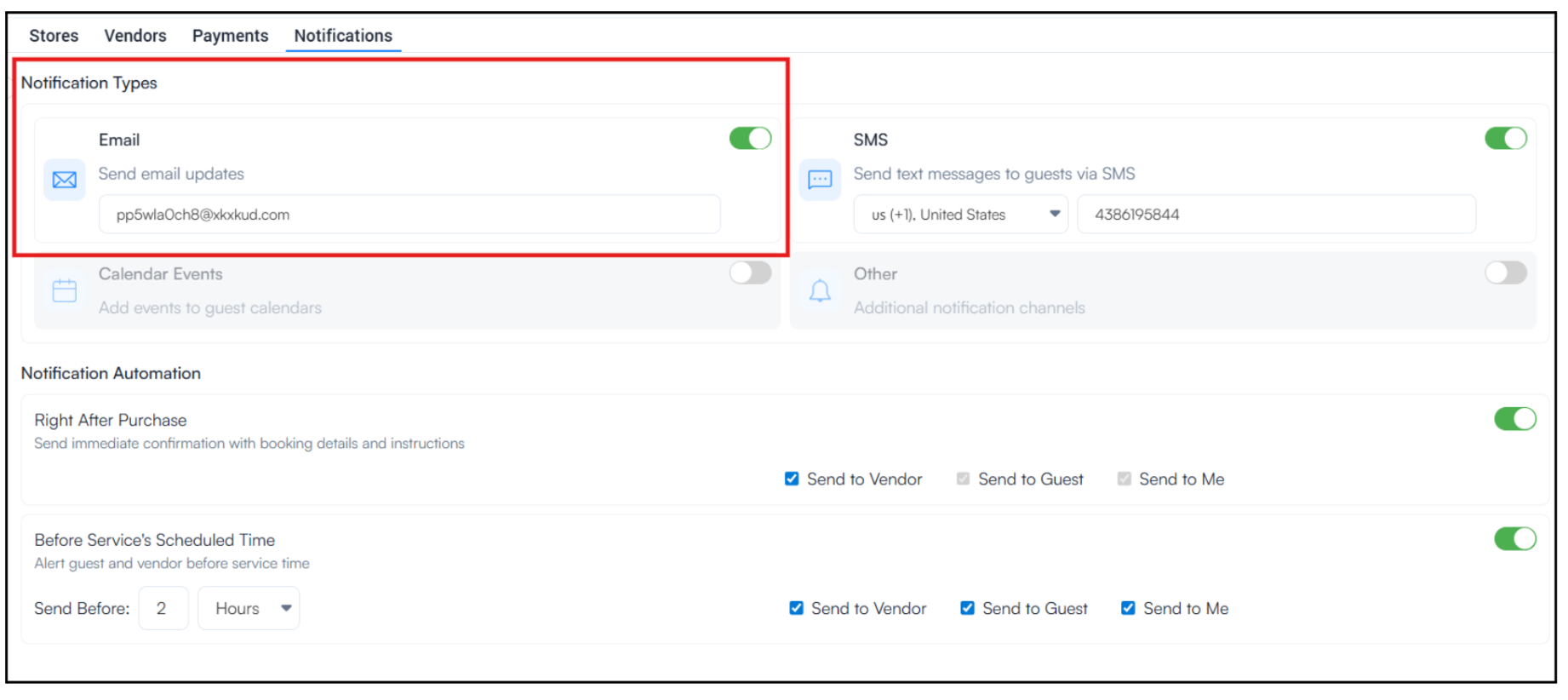
The Notification tab allows you to automate communication related to guest orders.
You can configure notifications so that vendors, guests, or yourself receive updates when an order is placed or when a service is approaching.
A) Instant Notifications Right After Purchase
When a guest places an order, the Right After Purchase notification instantly sends an email with order details such as the product purchased, delivery instructions, and booking information.
You can choose who receives the notification:
By default, notifications are enabled for the Me and guest, and you can also enable vendor notifications.
This ensures everyone involved in fulfilling the order receives the necessary information immediately.
B) Reminder Notifications Before the Service Time
The Notification tab also allows you to schedule reminders before the service is delivered. For example, you can configure the system to send an email 2 days before the scheduled service time.
These reminders help ensure that:
Notification recipients can be customized based on Your(Host) preference.
Step 4: Set Up Automated SMS Notifications
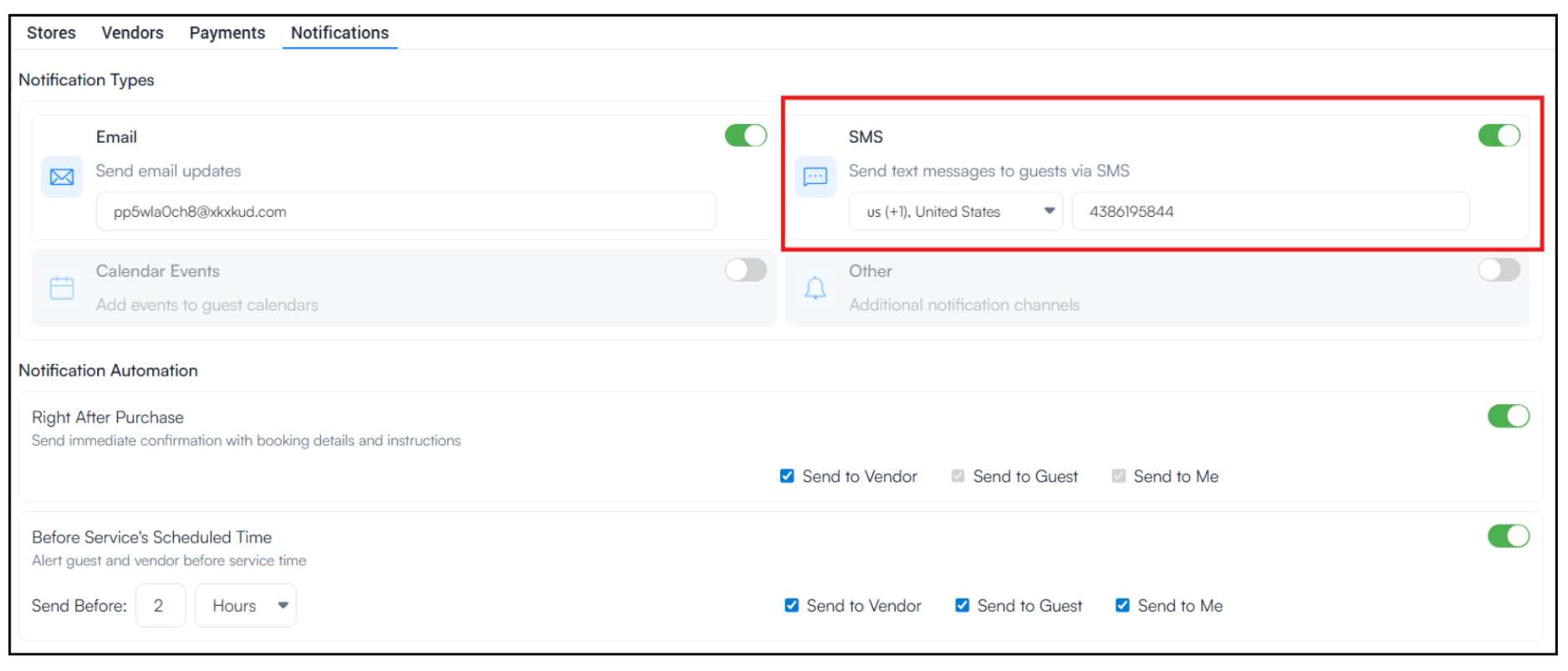
Enhance your guest experience with automated SMS notifications in WelcomeScreen designed to keep guests, vendors, and Yourself informed in real time.
A) Instant SMS Notifications After Booking
When a guest places an order instant SMS alerts are triggered with key details like service information, instructions, and confirmation.
Choose who receives notifications:
This ensures real-time communication and faster response times.
B) Automated SMS Reminders Before Service
Schedule SMS reminders (e.g.,2 hours/ 2 days before service) to keep everyone prepared.
This ensures that:
Optimize your operations with WelcomeScreen SMS notifications and deliver a smoother, smarter guest experience.
For additional assistance or questions, contact the WelcomeScreen support team at: support@welcomscreen.com


.png)