

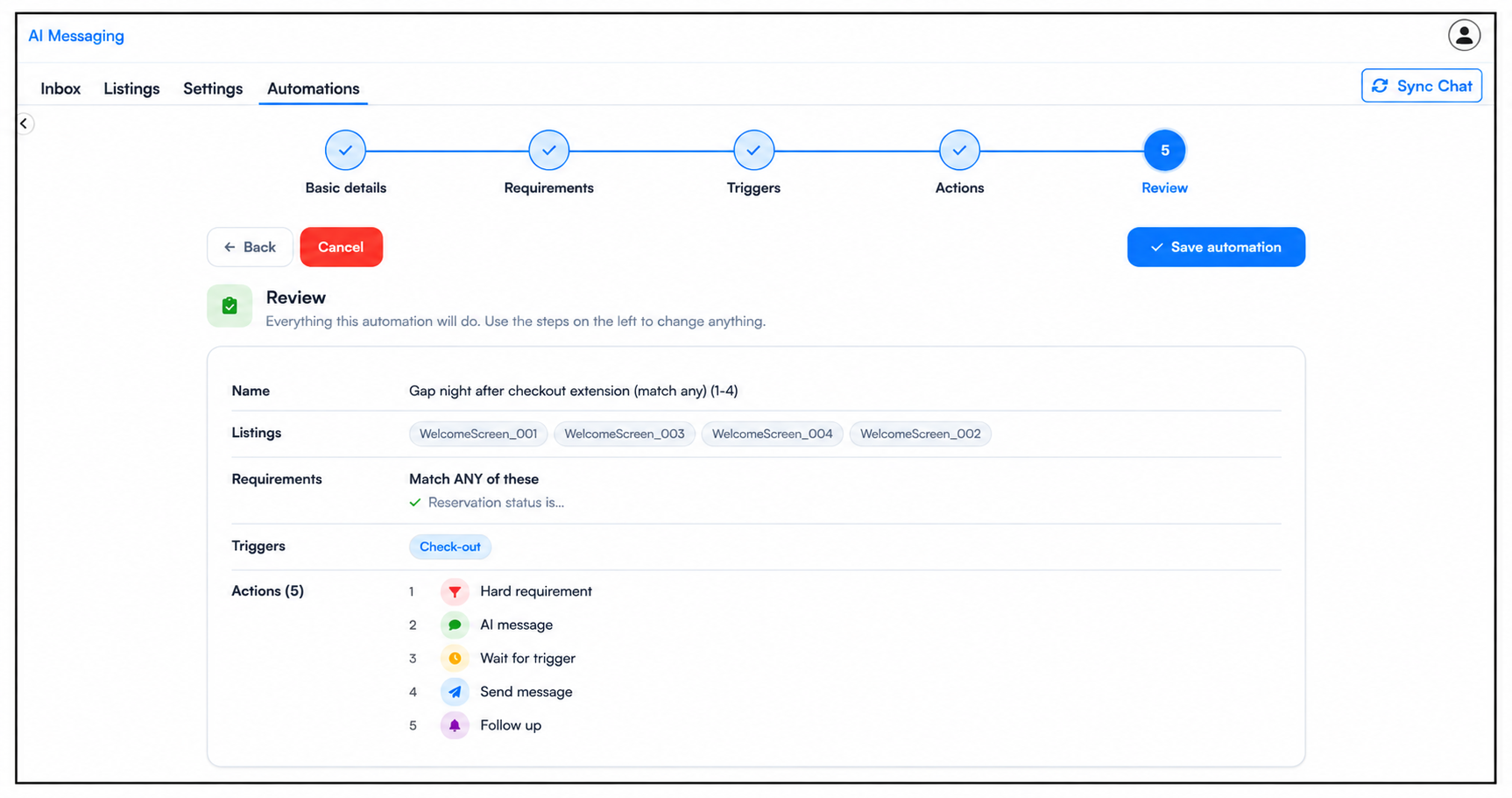
The Review step is the final stage of setting up your automation. Here, you can review the complete automation flow before saving it.
You can see all the selected listings, requirements, triggers, and actions in one place, making it easy to check that everything is configured correctly. If any changes are needed, you can go back to the relevant step and update them.
Once you have reviewed the entire workflow and confirmed that everything is correct, click Save Automation to activate and proceed with your automation.
Whenever a guest meets the initial conditions of an automation, they are enrolled in the workflow and appear in the Active state. The automation then checks and processes the configured requirements, triggers, and actions for that guest.

You can find this status right below the templates. Click “View guests in this automation” to see the guests currently enrolled in the automation and track their status.
Once the guest successfully completes the entire automation workflow, their status will automatically change from Active to Completed.

If a guest does not satisfy the initial or any mid-workflow condition, they will automatically exit the automation.

For additional assistance or questions, contact the WelcomeScreen support team at: support@welcomescreen.com
Part of the same family as STR Market.


.png)