

“What’s the WiFi password?”
It usually happens late at night. Or right as guests arrive. Or when you are busy doing literally anything else.
The good news is you can eliminate this question entirely by displaying your WiFi details directly on your Airbnb TV. Even better, you can do it in a way that feels modern, premium, and hands off.
In this guide, I’ll show you the easiest way to put your WiFi name and password on your Airbnb TV using WelcomeScreen.
Guests expect instant access to WiFi. If they can’t find it quickly, frustration builds fast and it shows up in reviews.
Displaying WiFi details on the TV helps you:
Most hosts still rely on printed cards, frames on the wall, or buried messages in Airbnb chat. TVs are already front and center in the living room, which makes them the perfect place for this info.
Before we talk about the best solution, let’s quickly cover what most hosts are doing today.
These methods technically work, but none of them feel seamless or premium.
This is where WelcomeScreen comes in.
WelcomeScreen allows you to display your WiFi details directly on your TV screen automatically when guests turn it on.
Instead of showing a blank home screen or random apps, guests see a clean welcome screen with everything they demonstrate need right away.
The WiFi info is always visible, always correct, and impossible to miss.
Here’s the simple setup process.
Sign up at:
https://www.welcomescreen.com
Once inside the dashboard, add your Airbnb listing and connect it to your TV.
You can input:
Choose colors, messaging, and layout so it matches your brand or listing vibe.
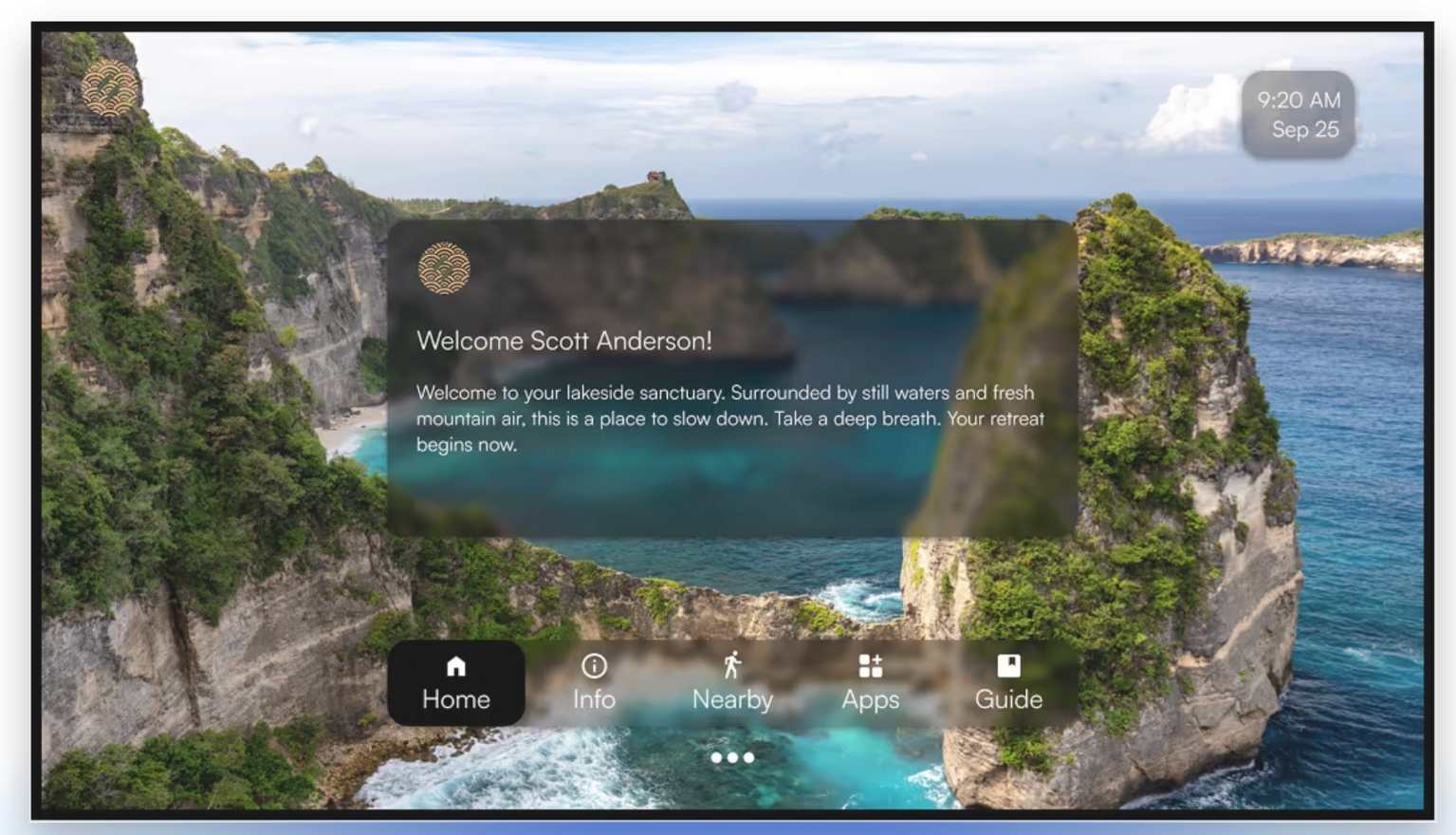
When guests arrive and turn on the TV, your welcome screen loads automatically.
No remotes to explain. No instructions needed.
WelcomeScreen works best with:
If you already have a modern smart TV in your Airbnb, there’s a good chance you are already compatible.
Guests rarely mention WiFi when it works perfectly. But they absolutely mention it when it doesn’t.
By showing WiFi details clearly on the TV, you:
Small details like this often separate average stays from memorable ones.
If you want to see exactly how this works step by step, watch the full YouTube video here:
If you’re still answering WiFi questions manually, this is one of the easiest upgrades you can make to your Airbnb.
Putting your WiFi details on your TV using WelcomeScreen takes minutes to set up and pays off every single stay.
If you want fewer messages, happier guests, and better reviews, this is a no brainer.
Learn more here:
https://www.welcomescreen.com


.png)